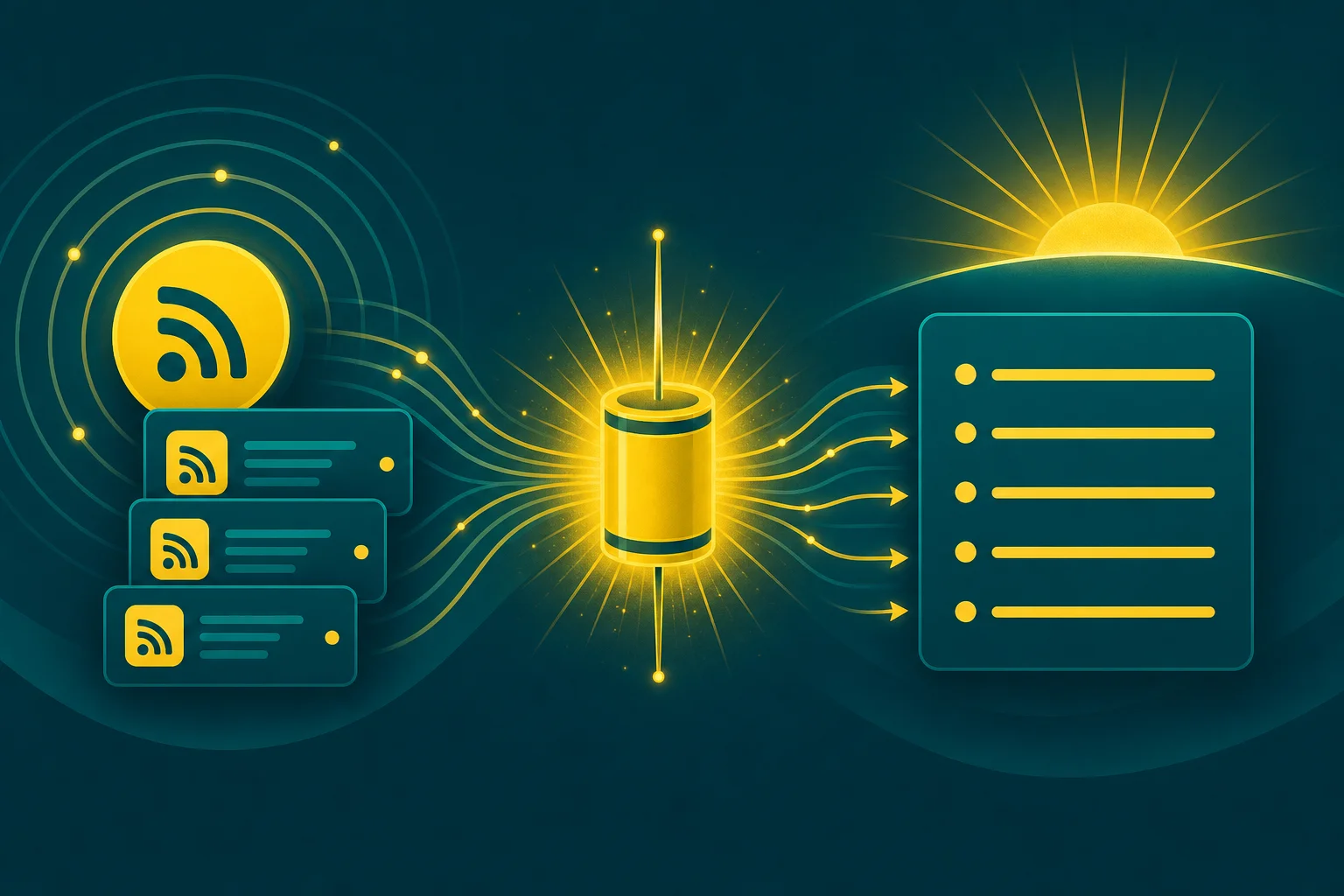
You follow twelve things on purpose. A dependency's GitHub releases, so a breaking change does not ambush you on a Tuesday. A competitor's changelog, because someone in the standup will ask. One subreddit that is occasionally signal. The status page for the API you build on. A research feed you swore you would keep up with. You subscribed to every one of them in good faith, and now the reader app says 400 unread and you have stopped opening it. The feeds did not fail you. The reading did.
The honest version of "I follow this feed" is "I will skim it later," and later never comes. What you actually want is one short brief, every morning, in the place you already look: the newest items from each feed, condensed to a handful of bullets, waiting in Slack before standup. Not the raw firehose. The summary.
That is a job for a schedule plus a small amount of AI, and Crontap now does both in one card. Point a daily schedule at the feed URL, write a one-line prompt, and the AI Integration condenses that run's response into a five-bullet brief and forwards it wherever you read it.
Why the obvious fixes all feel like chores
Every fix for "I have too many feeds" has a catch.
Pipe the raw RSS into Slack. Now Slack is the firehose. Every item, every release candidate, every "fixed a typo" commit, posted in full. You muted the channel inside a week, which is exactly where you started.
Keep using the reader app. The reader does not read for you. It is a tidy inbox of things you still have to open, scan, and close. The unread count is the whole problem, and a nicer unread count is not a solution.
Build a little RSS-summarizer service. Fetch the feed, call an LLM, post to Slack, deploy it, monitor it, remember it exists in six months when it silently breaks. That is a real project for what should be a five-minute setup.
Wire up a Zapier RSS trigger. Zapier's RSS trigger fires once per new item, which is spammy by design (you wanted a digest, not a notification per release), and it hands you the item fields, not a summary. Summarizing prose is not what a per-item trigger does well.
The shape that actually fits "one short brief each morning" is boring: fetch the feed on a clock, condense the response, forward the result. The only piece that has to live somewhere is the clock, and the condensing.
The in-product shape
Here is the whole thing as a diagram. Four boxes, one of them is the AI.
Daily schedule  →  GET the feed URL  →  AI condenses THIS run's response  →  POST to Slack
(your tz) (.atom / .rss) (newest items → 5 bullets) (forward URL)On a Crontap schedule's form, next to the webhook "Integrations" card, there is an "AI Integrations" card. After the schedule makes its HTTP call, Crontap takes that run's response body, transforms it with a model using your plain-English prompt, and forwards the result to a URL you pick.
The important constraint, and the thing that shapes the whole setup: the AI sees only this run's response body (truncated to roughly 100KB and treated as untrusted data) plus a little run metadata (the status code, whether it was ok or failed, the duration, the size). It has no tools, no browsing, no network of its own. It cannot go fetch the feed for you. So the schedule has to hit the feed URL directly, and the AI condenses whatever that single response happened to contain. For RSS and Atom and JSON Feed, that response is the feed itself, which is exactly what you want it to read.
Set it up in about a minute
One schedule, one AI Integration card.
- Create a schedule pointed at the feed URL. Method
GET, URL set to the feed (for a dependency,https://github.com/<org>/<repo>/releases.atom). Cadence daily, in your team's timezone, a little before standup. A daily fetch is the natural cadence for a morning brief, and it is the minimum cadence on Pro, so it lines up exactly. - Open the AI Integrations card and write the prompt in plain English. Something like: "You are reading an RSS/Atom feed. Summarize the newest items into at most five bullets, newest first. One line each, include the version or title and a link. Skip anything that is just a typo fix or a chore. If nothing is new, say so."
- Set Output format to Text for a plain brief. (Pick JSON if you want a structured payload, more on that below.)
- Set Forward to URL to where you read things. For Slack, that is an incoming webhook or a Workflow Builder webhook trigger (mapping notes below).
- Leave "Also run on failure" off so a flaky feed fetch does not forward a summary of an error page, and flip "Include schedule URL" on if you want the feed URL stamped into the payload so the receiver knows which brief it is.
- Hit "Perform test." You get the brief immediately, before you save and before you pay. Tweak the prompt, test again, repeat until the bullets read the way you want.
You can build and test the card on every tier. The gate is only at save: AI integrations are a Pro feature, from $2.99/mo, where you get one AI Integration per schedule at a minimum cadence of one day. Ultra lifts that to unlimited integrations and a one-hour minimum cadence. A once-a-day morning brief sits squarely inside Pro.
Fix this in 60 seconds with Crontap. Free tier available. No credit card. Schedule your first job →
A worked example: a releases feed to a five-bullet brief
Say the schedule GETs a dependency's releases.atom. The response that lands is Atom XML, and it looks like this (trimmed to two entries; a real feed carries the latest few dozen):
<?xml version="1.0" encoding="UTF-8"?>
<feed xmlns="http://www.w3.org/2005/Atom">
<title>Release notes from acme-sdk</title>
<updated>2026-05-31T07:02:00Z</updated>
<entry>
<title>v4.2.0</title>
<link rel="alternate" href="https://github.com/acme/acme-sdk/releases/tag/v4.2.0"/>
<updated>2026-05-30T17:12:00Z</updated>
<content type="html"><h3>Breaking</h3><ul><li>Drop Node 18 support (#841)</li></ul>
<h3>Features</h3><ul><li>Retry budget on the client (#812)</li>
<li>Request IDs on every error (#820)</li></ul></content>
</entry>
<entry>
<title>v4.1.3</title>
<link rel="alternate" href="https://github.com/acme/acme-sdk/releases/tag/v4.1.3"/>
<updated>2026-05-28T09:40:00Z</updated>
<content type="html"><ul><li>Patch: empty pagination cursors (#805)</li></ul></content>
</entry>
</feed>Nobody wants to read that with coffee. The AI, given the prompt above, returns a tight brief instead:
Morning brief: acme-sdk (newest first)
• v4.2.0 BREAKING: Node 18 support dropped (#841). Bump your runtime before upgrading.
• v4.2.0: retry budget added to the client (#812), opt-in per request.
• v4.2.0: every error now carries a request ID (#820), good for support tickets.
• v4.1.3: patch for empty pagination cursors (#805).
• Links: https://github.com/acme/acme-sdk/releasesCrontap wraps that string as aiOutput and POSTs an envelope to your forward URL. The shape is fixed and small:
{
  "aiOutput": "Morning brief: acme-sdk (newest first)\n• v4.2.0 BREAKING: ...",
  "failed": false,
  "status": "Success",
  "statusCode": 200,
  "statusOk": true,
  "duration": 318,
  "durationUnit": "ms",
  "size": "47.6 kB",
  "verb": "GET",
  "goToUrl": "https://crontap.apihustle.com/crontap/schedule/abc123",
  "timestamp": 1748674920000,
  "url": "https://github.com/acme/acme-sdk/releases.atom"
}In Text mode aiOutput is the string above; in JSON mode it is the parsed object the model returned. The metadata fields (statusCode, duration, size) describe the feed fetch, verb is the schedule's method, goToUrl deep-links back to the schedule in Crontap, and url is present only because you turned on "Include schedule URL."
One mapping detail for Slack: a classic incoming webhook expects a payload with a top-level text field, and this envelope sends aiOutput. So you point the forward URL at a Slack Workflow Builder webhook trigger (which accepts arbitrary JSON and lets you map aiOutput into the message) or at a one-step Make / Zapier / n8n scenario that reads aiOutput and posts it. Either way, what lands in the channel is the brief:
acme-sdk · daily brief
• v4.2.0 BREAKING: Node 18 dropped (#841)
• v4.2.0: retry budget on the client (#812)
• v4.2.0: request IDs on every error (#820)
• v4.1.3: empty pagination cursors patched (#805)
→ github.com/acme/acme-sdk/releasesFeeds worth a daily brief
Most things you "keep up with" already publish a feed. A few real URL patterns, all of which return the feed as that run's response so the AI has something to condense:
| Feed | URL pattern | Format | What the brief gives you |
|---|---|---|---|
| A dependency's releases | https://github.com/<org>/<repo>/releases.atom | Atom | What changed since yesterday, breaking changes flagged first |
| A subreddit | https://www.reddit.com/r/<sub>/.rss | RSS/Atom | The few new threads actually worth opening |
| A status page (Statuspage) | https://<status-host>/history.rss | RSS | Incidents and maintenance windows in plain English |
| A research category (arXiv) | https://rss.arxiv.org/rss/<category> | RSS | New papers in your field, one line each |
| A blog or changelog | https://<site>/feed (often /rss.xml, /atom.xml, /index.xml) | RSS/Atom | The posts you meant to read, summarized |
GitHub serves the .atom releases feed for any public repo, so that pattern doubles as the changelog for most npm packages (the package's repo). Atlassian-hosted status pages expose history.rss and history.atom. Most blogs and changelogs publish at one of the conventional paths in the last row. If you are not sure a site has a feed, view source and look for a link rel="alternate" type="application/rss+xml" tag.
The one honest caveat: no memory between runs
This is the thing to understand before you trust it. In v1 there is no cross-run memory. The AI does not remember what it sent yesterday; each run, it condenses whatever the feed returns right now. If the feed still lists last week's releases (most do), a naive "summarize the newest items" prompt can re-mention things you already saw.
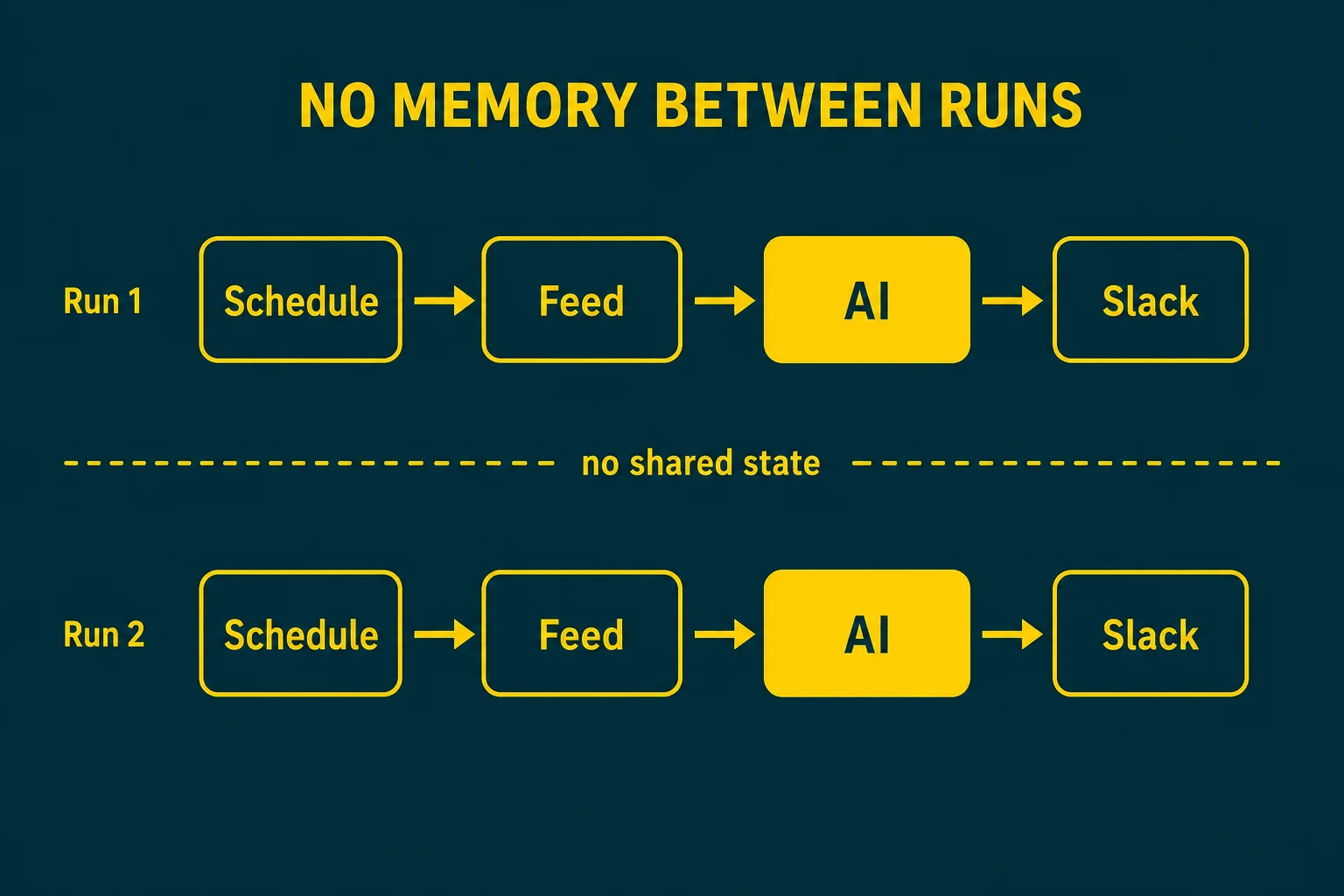
Three ways to keep the brief fresh:
- Use a feed that is naturally time-bounded. A status page only lists recent incidents; a high-volume subreddit feed rolls over fast. Yesterday's items fall off on their own.
- Push the dating into the prompt. Feeds carry
pubDate(RSS) orupdated(Atom) timestamps. Ask for "only items published in the last 24 hours, based on each item's date; if there are none, reply that there is nothing new." The model has the timestamps in the response; it just needs to be told to use them. - Dedupe at the destination. If your forward target is your own endpoint or an automation step, key off the item link or version and drop ones you have already posted. The schedule stays dumb; the receiver stays idempotent.
For a daily brief off a moving feed, "items from the last 24 hours" in the prompt covers most cases. It is not perfect dedupe, and it does not pretend to be.
Variants
JSON output for a Block Kit digest. Switch Output format to JSON and describe the shape in the prompt ("return { headline, bullets: string[], links: string[] }"). aiOutput arrives as a parsed object, and your Make / Zapier / n8n step or your own endpoint templates it into Slack Block Kit for a nicer-looking digest with sections and buttons.
Several feeds. One AI Integration reads one schedule's one response, so the clean way to brief on five feeds is five schedules, each with its own card, each posting to the same channel. That is unlimited territory, which is Ultra. If you want it all in one message on Pro, point a single schedule at an aggregator feed (an OPML-backed combiner or an RSS-merge service that returns one combined feed) and brief on that.
Not Slack. The forward URL is just an HTTPS endpoint. Discord and Microsoft Teams take incoming webhooks the same way (map aiOutput into their expected shape), and "email me the brief" is a forward to a tiny endpoint that sends through your mail provider.
FAQ
Does it work with any feed format?
Any feed that the schedule can fetch over HTTP and that fits in the response: RSS 2.0, Atom, and JSON Feed all work, because the AI just reads the response body as text. See the RSS 2.0 spec, Atom (RFC 4287), and JSON Feed 1.1 if you want to confirm a feed's shape.
How many items can it read?
As many as fit in roughly 100KB of response body, which is where Crontap truncates the input before handing it to the model. For most release and changelog feeds that is dozens of items. A very large or very chatty feed gets cut off at the limit, so the brief covers the top of the feed (which, since feeds lead with the newest items, is the part you care about).
How do I avoid repeats?
This is the no-memory caveat above. Use a naturally time-bounded feed, ask the prompt for "items from the last 24 hours" using the feed's own dates, or dedupe at the destination by item link or version. Pick whichever matches how stale your feed is.
Daily or hourly?
Daily is the morning-brief cadence and is the minimum on Pro, which is why the two fit so well. If you want a feed checked every hour (a status page during an incident, say), that one-hour minimum cadence lives on Ultra.
Can it post to Discord, Teams, or email?
Yes. The forward URL accepts any HTTPS endpoint. Chat tools that expect a specific payload shape (Slack's text, Discord's content) get the envelope mapped through a Workflow Builder trigger or a one-step automation; for email, forward to a small endpoint that calls your mail provider.
References
Related on Crontap
- Introducing AI Integrations. The full tour of the card, the prompt, the output formats, and the forwarded envelope.
- Scheduled AI / LLM jobs use case. The use-case-first guide for running models on a clock.
- Scheduled reports and digests use case. The broader pattern this brief belongs to.
- Team notifications use case. Getting the right summary into the right channel.
- Turn any API response into a plain-English digest. The sibling pattern for JSON APIs rather than feeds.
Fix this in 60 seconds with Crontap. Free tier available. No credit card. Schedule your first job →