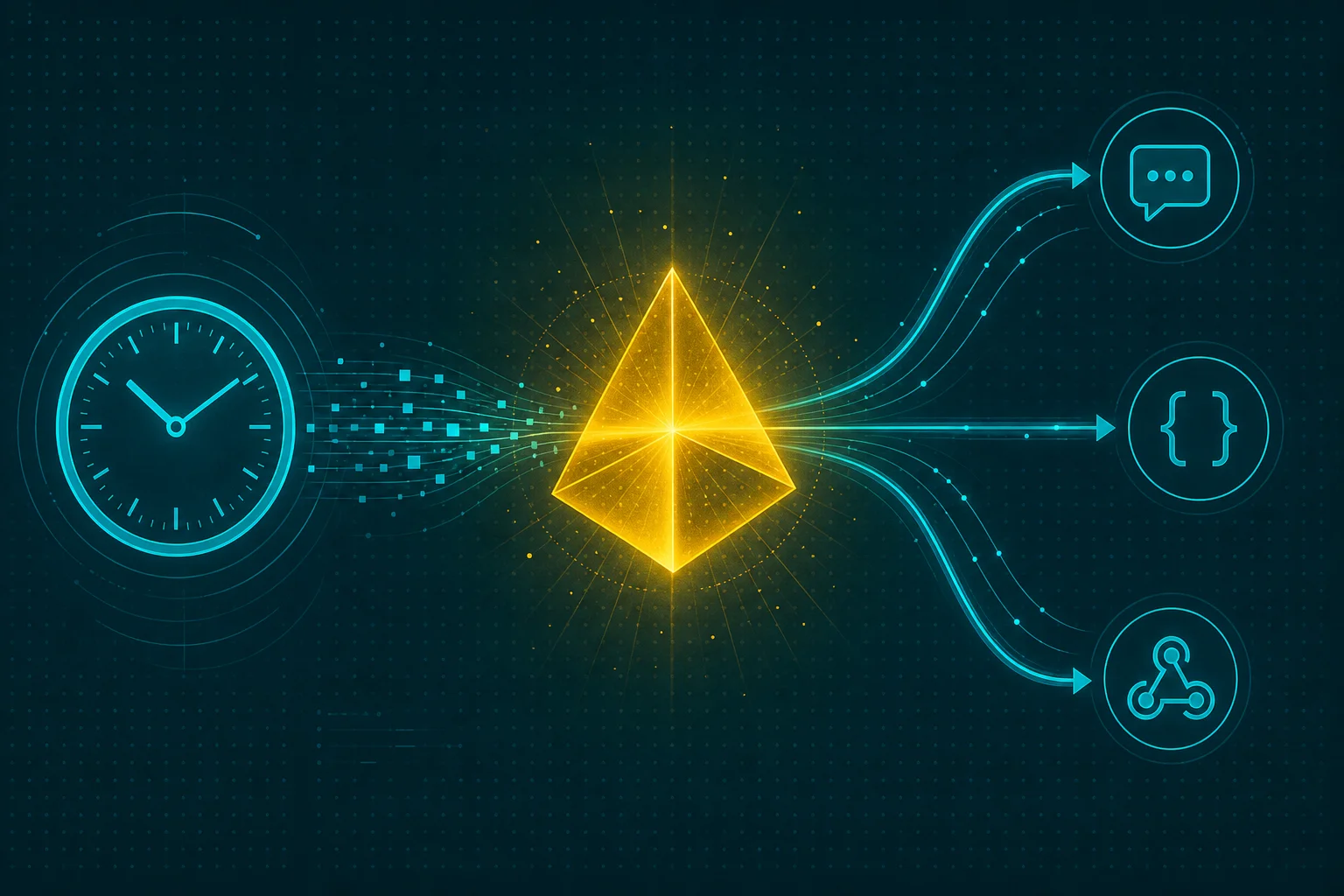
You already schedule HTTP calls on Crontap. The schedule fires, the request goes out, you get a 200, and then the response is a gigantic JSON blob that you don't know what to do with. Today we close that loop with AI Integrations.
Meet AI Integrations
AI Integrations is a new schedule feature, sitting right next to the "regular" webhook Integrations you already know and love. The idea is simple: after a schedule's HTTP run, Crontap takes that run's response, transforms it with an LLM using your plain-English prompt, and forwards the result to a URL you choose. A Slack channel, a Make or Zapier or n8n webhook, your own endpoint. Wherever the takeaway should land.
Why we built it
Three things kept coming up. You want to transform a response (summarize it, score it, pull out the field that matters) without hand-writing a parser. You want to forward that result somewhere a human or another tool actually reads. And you do not want to stand up a backend route, a deploy, and a secret just to glue those two steps together. AI Integrations is exactly those steps, with no route to write: prompt in, transformed result out, POSTed to wherever you said.
How it works
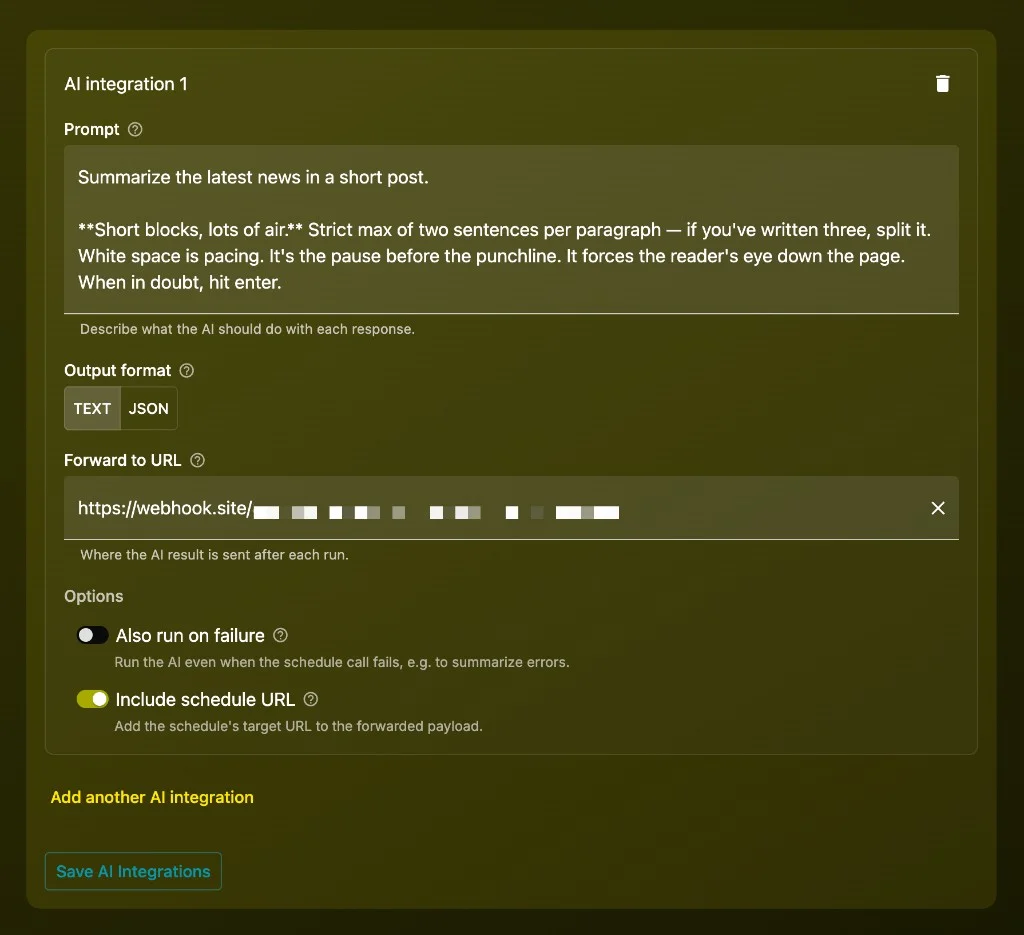
You configure three fields and two toggles:
- Prompt: one plain-English instruction. "Summarize this in two sentences." Or "Return the error count and the most common error."
- Output format: Text returns a string. JSON returns structured JSON whose shape you describe in the prompt.
- Forward to URL (required): where the result gets POSTed.
The two options: Also run on failure is off by default, so the AI runs only when the call succeeds; flip it on to summarize errors too. Include schedule URL adds the schedule's target URL to the forwarded payload.
The whole flow is one line:
Schedule run -> AI transform (your prompt) -> forward URLThe model reads the body, applies your prompt, returns text or JSON, and Crontap wraps that in an envelope and POSTs it to your forward URL:
{
  "aiOutput": "Checkout error rate is up to 4.2% in the last hour, mostly card declines on the EU gateway.",
  "statusCode": 200,
  "statusOk": true,
  "duration": 412,
  "size": "18.2 kB",
  "verb": "POST",
  "goToUrl": "https://hooks.slack.com/services/T000/B000/XXXX",
  "timestamp": "2026-06-05T09:00:00.000Z",
  "url": "https://api.yourapp.com/metrics"
}On the safety side, the response body is handed to the model as untrusted, delimited data behind a hardened system prompt. Forward URLs are also SSRF-validated before anything is sent.
What you can do with it today
We shipped five worked recipes alongside this launch, each a real prompt with a real forward target:
| Recipe | The prompt turns... | ...and forwards to |
|---|---|---|
| Plain-English digest of an API response | a raw JSON response into two readable sentences | Slack, email, anywhere |
| Normalize responses before Zapier, Make, n8n | a messy payload into clean, predictable JSON | your automation platform's webhook |
| Competitor price change watcher | a pricing page response into structured price JSON | a sheet or DB via webhook |
| Error log triage to Slack | a noisy error response into the top issue | a Slack incoming webhook |
| Feed to a morning brief | a feed or status endpoint into a short brief | your inbox or channel |
For the bigger picture, see scheduled AI jobs. If you would rather run the entire pipeline inside your own backend, the scheduled OpenAI sentiment pipeline walks through that shape.
Pricing
You can try this on any plan. Add an AI Integration to a schedule and hit the Perform test button to see the result before you commit.
AI integrations are a Pro feature. Crontap Pro starts at $2.99/mo and gives you one AI integration per schedule, running at most once a day. Ultra lifts that to unlimited integrations per schedule and a minimum cadence of one hour. Starter (the free tier) can test but cannot save an AI integration.
Fix this in 60 seconds with Crontap. Free tier available. No credit card. Schedule your first job →
What's not in v1
We kept the surface small on purpose. Out of scope today:
- No stored history. Crontap does not keep AI output. You see it in the test-run modal and at your forward destination, nowhere else.
- UI only. You configure AI integrations in the dashboard, not through the API (yet).
- One run at a time. The AI sees a single run's response, so there is no cross-run diffing or memory. It cannot compare today to yesterday.
How to enable it
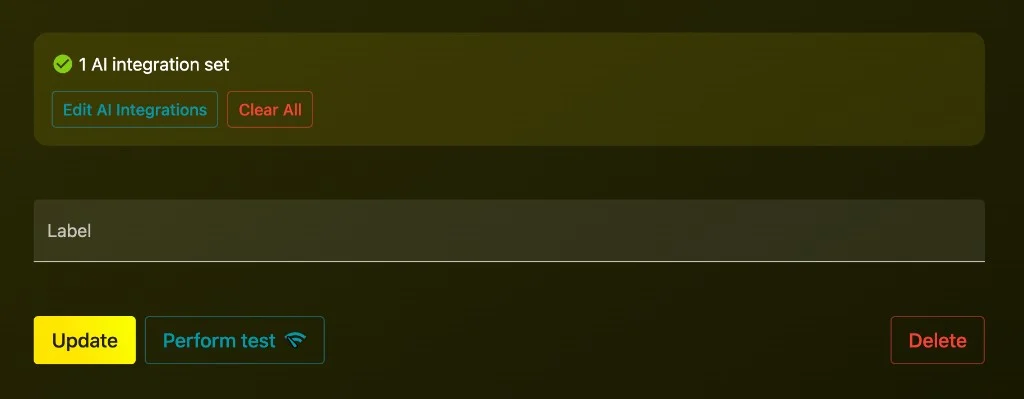
AI integrations are enabled by default for all users. Open a schedule, open the AI Integrations card, type a prompt, paste a forward URL, and hit Perform test. If you like what comes back, hit Save (on Pro or Ultra) and it runs after every scheduled call.
Fix this in 60 seconds with Crontap. Free tier available. No credit card. Schedule your first job →