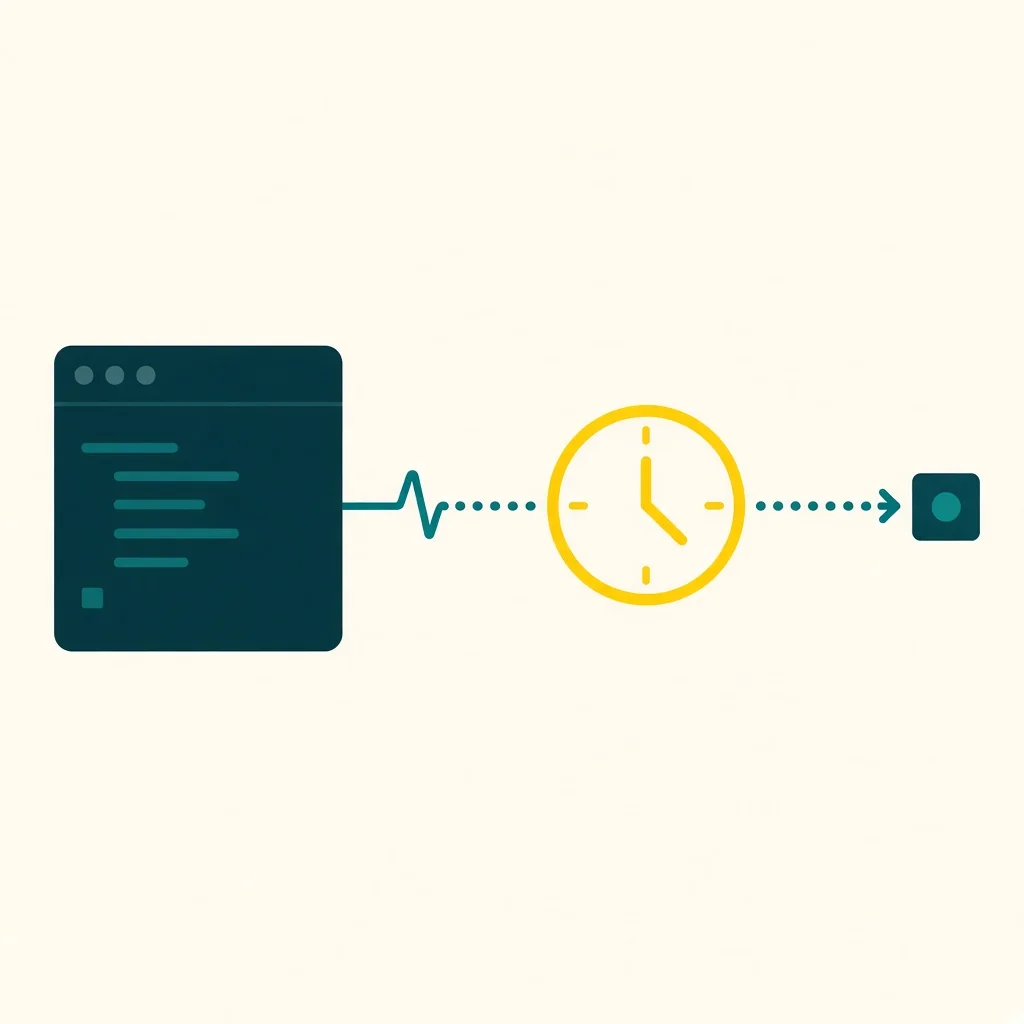
You have a /daily-digest route and want it called every weekday at 9:00 AM. This walkthrough connects Cursor to Crontap, creates the recurring HTTP request, and verifies the saved schedule in about five minutes. You need a Crontap account, a public HTTPS endpoint that is safe to call more than once, and a current Cursor desktop installation. Crontap owns the HTTP schedule and run evidence. It does not wake Cursor or schedule a chat prompt.
Before you start
- Choose the timezone that describes 9:00 AM for your users. This example uses
Europe/London. - Keep endpoint secrets in request headers. Do not paste production secrets into the chat transcript.
- Cursor supports remote Streamable HTTP servers with OAuth. Project config lives at
.cursor/mcp.json; global config lives at~/.cursor/mcp.json. - Verified against the Cursor MCP docs and Cursor Automations docs on 2026-09-15.
Connect Cursor to Crontap MCP
Cursor
~/.cursor/mcp.json
{
  "mcpServers": {
    "crontap": {
      "url": "https://mcp.crontap.com/mcp"
    }
  }
}
Cursor IDE supports remote OAuth MCP servers and a one-click deeplink.
The selected setup points Cursor at https://mcp.crontap.com/mcp. A project file shares the server definition with collaborators, while the global file keeps it private to your machine. Either way, Cursor opens Crontap OAuth in your browser when authentication is needed.
Step 1
Add the remote server
Put the configuration in .cursor/mcp.json for this repository or
~/.cursor/mcp.json for every project. Crontap should appear under Customize
with its schedule, monitor, heartbeat, and account tools.
Step 2
Approve the connection
Open Crontap in Cursor's MCP list and complete the browser sign-in. Review the requested access before approving it. The server should change to connected, with its tools available in chat.
- Crontap
- Connected
- Authentication
- OAuth 2.1
Step 3
Preview the weekday cadence
Ask Cursor to preview “weekdays at 9am” in Europe/London without saving it.
Previewing first catches timezone or cadence ambiguity before a write. Cursor
should call preview_schedule and show the resolved cron expression,
timezone, and next run times.
Step 4
Create the HTTP schedule
Ask Cursor to create a POST schedule for https://example.com/daily-digest
using the previewed cadence. If your endpoint requires authentication, tell
Cursor to leave the secret out. After creation, open the returned schedule on
the Crontap schedule page, add the Authorization request header there, save
it, and perform a test request. Cursor presents the schedule write for
approval, then returns the new schedule ID and next run.
Step 5
Read it back before you leave
Ask Cursor to list schedules and retrieve the new item by its returned ID. Check the URL, method, cadence, timezone, and status. The saved schedule should be active and match the preview. Pause it immediately if any field is wrong.
Ask Cursor with copyable prompts
The prompts below keep reads and writes separate, which makes approvals easier to review.
Use only the Crontap MCP tools. Preview "weekdays at 9am" in Europe/London. Do not create or update anything yet. Show the resolved cron and three upcoming runs.Create a schedule named "weekday daily digest" that POSTs to https://example.com/daily-digest using the cadence we just previewed. Before calling create_schedule, summarize the URL, method, timezone, and cadence for my approval.List my Crontap schedules, find "weekday daily digest", retrieve it by ID, and confirm its status and next run. Do not modify it.Verify the Cursor cron job worked
First, verify the MCP response. The create call should return one schedule ID, an active status, and a next run consistent with the preview. Then open Crontap and inspect the same resource. Confirm that the endpoint is exactly the production URL, not a local or preview deployment.
After the first scheduled fire, ask Cursor to call get_schedule_history for that ID. A successful entry should show an HTTP success status and duration. Also check the endpoint's own logs for the matching request. Crontap history proves the request left the scheduler; application logs prove your route handled it. Those are different claims, and good debugging keeps them separate.
If you need immediate evidence before 9:00 AM, temporarily create a safe test schedule with a near-term cadence, verify one run, then delete the test resource. Do not casually change the production schedule just to force a test.
Cursor Automation or Crontap schedule?
Use a Cursor Automation when the recurring work is a cloud agent prompt, such as reviewing pull requests every morning. Cursor documents scheduled and event triggers for cloud agents, with usage billed as cloud-agent work.
Use Crontap when the recurring work is an HTTP request to an API, webhook, or cloud function. The endpoint runs independently of whether Cursor is open. You can still use Cursor to create, pause, resume, and inspect that schedule through MCP.
For “tell me when an existing worker stopped checking in,” use a Crontap heartbeat. The worker sends pings; Crontap alerts when they stop. A heartbeat does not launch the worker.
Troubleshooting
Crontap never appears in Cursor
Check that the JSON uses mcpServers, that the URL ends in /mcp, and that the file is in .cursor/mcp.json or ~/.cursor/mcp.json. Open Customize and make sure the server is enabled.
OAuth opens but connection fails
Retry authentication from the server entry. Corporate proxies must allow both the MCP host and browser OAuth redirects. Cursor's desktop OAuth callback uses localhost, so security software that blocks loopback callbacks can interrupt sign-in.
Cursor cannot find a schedule
Ask it to call list_schedules first. Similar names are easy to mix up; confirm the ID and endpoint before approving a change.
The run returned 401 or 403
The scheduler reached your endpoint, but endpoint authentication rejected it. Check the header name and value at the endpoint. Do not paste the secret into another prompt while debugging.
The endpoint ran twice
Make the endpoint idempotent. Retries and manual tests can repeat requests. Use a date or request key so a digest, invoice, or cleanup operation can safely ignore duplicates.
Next steps
- Return to the Crontap MCP hub for the tool catalog and security model.
- Compare the same workflow in Claude and Codex.
- Read Scheduled tasks for AI-built apps for endpoint design patterns.
Ready to connect Cursor? Free forever tier. No credit card. Create your Crontap account →
Verified with Cursor desktop and current Cursor MCP documentation on 2026-09-15. Sources: Cursor MCP and Cursor Automations.
FAQ
Cursor cron job questions
- Can Cursor run cron jobs?
- Cursor can use Crontap MCP to create and manage recurring HTTP requests. Cursor Automations are the separate native option for running cloud-agent prompts on a schedule.
- Where does Cursor store MCP configuration?
- Use .cursor/mcp.json for project configuration or ~/.cursor/mcp.json for a global configuration available across projects.
- Does Crontap wake a Cursor agent?
- No. Crontap owns the clock for HTTP requests. Cursor initiates MCP tool calls while you are chatting, and Cursor Automations own scheduled cloud-agent runs.
- How do I debug a Cursor MCP connection?
- Open the Output panel with Cmd+Shift+U or Ctrl+Shift+U, choose MCP Logs, and check authentication, connection, or tool-discovery errors.