You can put a cron job on a public status page, but not by pointing an uptime monitor at it. A cron job has no URL that answers when it is healthy. The reliable signal is the job itself saying "I ran", which is what a heartbeat is.
The setup is short: each job pings a Crontap heartbeat URL when it finishes, the heartbeat goes on a Crontap status page next to your uptime monitors, and the page shows the job as degraded when it runs late and as down when it misses its deadline or reports a failure. Status pages are free on every plan, and Starter includes one heartbeat (hourly or slower), which is enough for a nightly job.
Why an uptime check cannot see a cron job
An uptime monitor asks a URL "are you there?" on an interval. That works for an API or a dashboard. It does not work for the nightly backup, the hourly invoice run or the queue worker that drains overnight, because those have nothing to ask. Their most common failure is also the quietest one: the job never starts. The server restarted, someone disabled the schedule during a deploy, or the platform skipped a trigger. Nothing errors, so nothing alerts.
A heartbeat flips the direction. The job calls Crontap after each run, and Crontap expects that call within a period plus a grace window. If the call does not arrive, the job is late, then down. That absence is exactly what customers would want to see on a status page: "the export you rely on did not run last night."
The heartbeat vs uptime monitor guide goes deeper on when each signal fits. Most teams end up using both, and a status page is a good place to show them side by side.
Step 1: create a heartbeat for the job
In the Crontap dashboard, open Heartbeats and create one per job:
- Period: how often the job should report. Daily for a nightly backup, hourly for an hourly sync. Starter allows periods of an hour or longer; Pro goes down to one minute.
- Grace: how late is still normal. Starting around 20% of the period works for most jobs; a backup that sometimes takes an extra half hour needs more.
Crontap gives the heartbeat a secret ping URL, https://ping.crontap.com/<token>. A request to it reports success, and the same URL with /fail on the end reports a known failure. GET, HEAD and POST all work.
Step 2: ping it from the job
Report the job's real result, not just the fact that the wrapper ran. For a crontab entry, wrap the job in a small script:
# /path/to/job-with-heartbeat.sh
/path/to/job.sh
status=$?
ping_url="https://ping.crontap.com/YOUR-TOKEN"
[ "$status" -eq 0 ] || ping_url="$ping_url/fail"
curl -fsS -m 10 --retry 3 "$ping_url" > /dev/null
exit "$status"
# crontab: 0 3 * * * /path/to/job-with-heartbeat.shCapturing $? first matters. The script reports the job's exit code, then exits with it, so a successful curl never turns a failed backup into a green row.
In GitHub Actions, report success and failure as separate steps:
- name: Run job
  id: job
  run: ./job.sh
- name: Report success
  if: success()
  run: curl -fsS -m 10 --retry 3 "https://ping.crontap.com/YOUR-TOKEN"
- name: Report failure
  if: failure()
run: curl -fsS -m 10 --retry 3 "https://ping.crontap.com/YOUR-TOKEN/fail?msg=GitHub%20Actions%20failed"The heartbeat's setup panel has the same pattern for Node.js, Python, Docker and Kubernetes CronJobs, Windows Task Scheduler and WordPress wp-cron.
If Crontap runs the job for you. A Crontap schedule cannot be added to a status page directly; pages show uptime monitors and heartbeats. The bridge is the heartbeat's Crontap schedule tab: it creates a schedule with two Integrations already filled in, one that calls the heartbeat URL when a run succeeds and one that calls /fail when it fails. The schedule then reports to the heartbeat, and the heartbeat goes on the page.
Step 3: add the heartbeat to a status page
Open Status pages, create a page (or use the guided setup, which offers a heartbeat tile for "my nightly backup" on its own), and add the heartbeat on the Items tab. Two details are worth a minute:
- Give it a public name. Customers do not need
prod-pg-dump-v2. "Nightly backups" or "Data export" is better. The ping token, the job's command and any failure message stay private. - Group it. A section such as "Background jobs" or "Data" keeps scheduled work apart from the API and dashboard rows.
What visitors see when a job is late
A heartbeat moves through a few states, and the page follows it within a few minutes:
| Heartbeat state | When | On the status page |
|---|---|---|
| Pending | Created, no ping yet | Pending (no deadline until the first ping) |
| Up | Pinged within the period | Operational |
| Late | Period passed, still inside grace | Degraded |
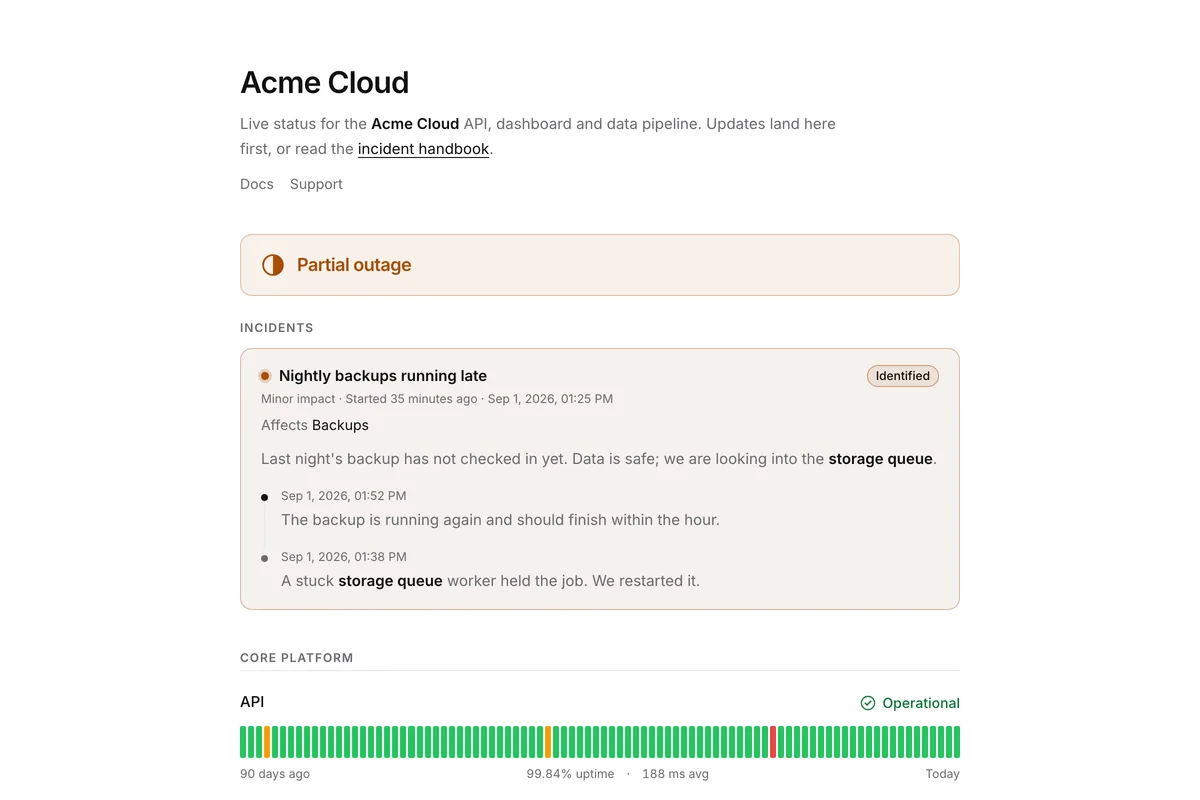
| Down | Grace passed with no ping, or the job sent /fail | Down, and the whole page shows a major outage |
| Paused | You paused it | Hidden from the page |
Every miss, failure and recovery also lands in the page's automatic timeline and in the 90-day bars, so a job that has been flaky all month looks flaky. The Departures Board template shows it literally: the late job is a delayed flight.
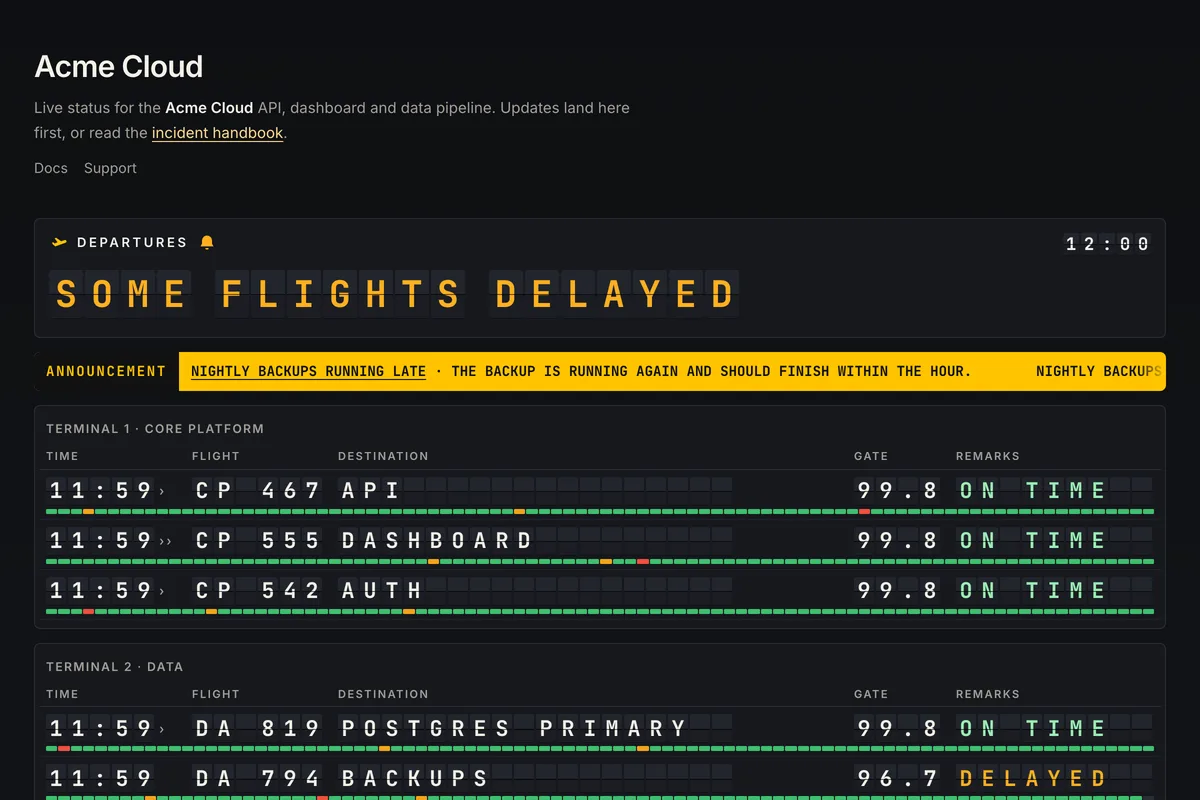
Two things to decide up front:
- Is one job worth a red banner? A single down item sets the whole page to major outage. That is right for a billing run customers depend on. For a nightly cleanup nobody outside your team would notice, keep it off the public page, or put background jobs on a separate page. Pages are not capped by plan.
- Who explains it? Crontap changes the state automatically, but it never writes an incident for you. When a job is late for a reason you know, post an incident with the affected service and a short update. The incident thread is what turns "degraded" into something a customer can act on.
Planned downtime for a job works too. Schedule a maintenance window and the linked services show as under maintenance instead of down. Crontap keeps watching the heartbeat during the window and keeps sending your alerts.
A status badge for the job's README
Each page has an SVG badge at crontap.page/<slug>/badge.svg, free on every plan. It reads from the same data as the page, so a late or missed job shows on the badge too. The Share tab builds these snippets with your page's address filled in; here they are with your-slug as a placeholder.
Markdown, for most READMEs and docs sites:
[](https://crontap.com/s/your-slug?ref=badge-md)GitHub follows the reader's GitHub theme rather than the operating system, so the GitHub snippet pins a light and a dark version:
<a href="https://crontap.com/s/your-slug?ref=badge-github">
  <picture>
    <source
      media="(prefers-color-scheme: dark)"
      srcset="https://crontap.page/your-slug/badge.svg?theme=dark"
    />
    <img
      src="https://crontap.page/your-slug/badge.svg?theme=light"
      alt="Nightly jobs status"
      height="35"
    />
  </picture>
</a>A badge for one job only, as daily bars with the uptime figure: set Scope to that job in the badge builder, which adds item= with the item's id.
[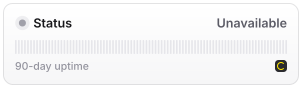](https://crontap.com/s/your-slug?ref=badge-md)Other options include six styles (pill, compact, bars, card, shield, orb), window=30 or window=7 instead of 90 days, and palette=colorblind. Invalid values fall back to the defaults, so a typo never breaks the image. GitHub caches images through its own proxy, so a change can take a few minutes longer to show in a README than on the page.
What this setup does not do
Be clear with yourself about the limits before you promise customers anything:
- Heartbeats record success, failure and silence. They do not measure how long a run took or report a separate start signal. If you need duration tracking, Cronitor and Healthchecks.io model it; our Healthchecks.io comparison covers that honestly.
- The page does not email your customers. Visitors can follow the page's RSS feed, but there are no email or SMS subscribers yet.
- A heartbeat expects an interval plus grace, not a cron expression like "weekdays at 09:00". A weekday-only job needs a grace long enough to cover the weekend gap, which also makes a weekday miss slower to surface.
If the job runs and the page shows it, the next silent miss becomes something both you and your customers can see. Create a heartbeat, add it to a free status page, and drop the badge in the README.